jira-tabbed-tui
A fast, keyboard-driven terminal UI for Jira — your triage board, in the terminal.
jira-tabbed-tui turns your everyday Jira queries into a set of live, tabbed
views you can fly through without ever touching the mouse. Define your tabs with
JQL, browse issues in a compact table, drill into full detail, and run the
common write actions — transition, assign, label, comment — right from the
keyboard. It rides on top of the jira CLI for reads and writes and
talks to the Jira REST API directly for what the CLI can’t do — notably loading
tabs with more than 100 issues.
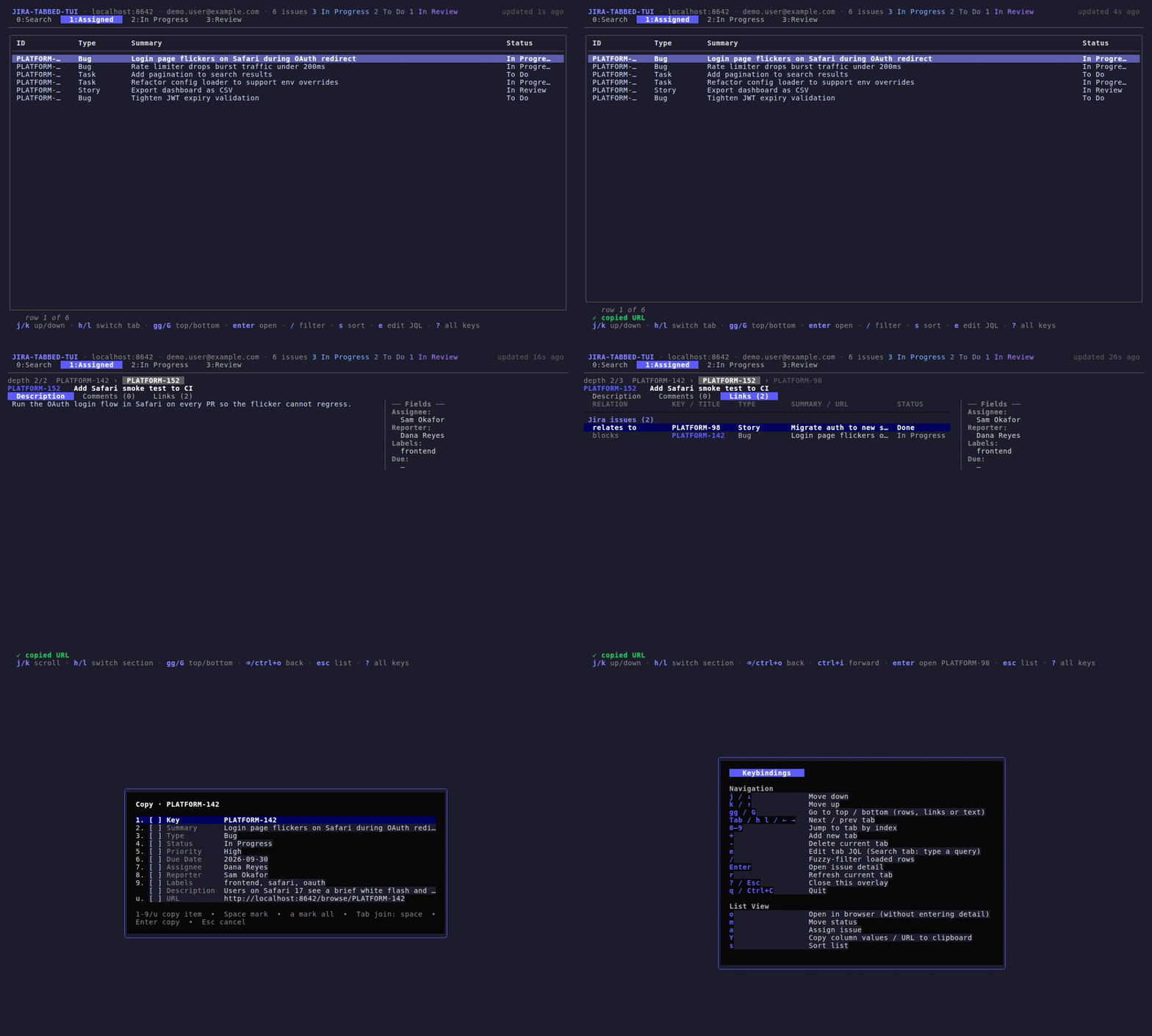
The clip above is recorded from the real TUI driven by a mock backend — no live Jira needed. Regenerate it any time with
vhs demo/demo.tape(seedemo/).
Features
- Tabbed JQL views — every tab is a saved JQL query; switch with
Tab, arrow keys, or a number key. Add, edit, and delete tabs on the fly. - Keyboard-first — navigation, filtering, and all write actions are bound to single keys, every binding remappable via config.
- Rich detail view — description, comments, and links (including subtasks and remote/web links) split across body tabs, with a configurable sidebar of fields.
- Organised links — the Links tab groups Jira issues, pull requests and other web links, sorts them, shows each linked issue’s type, and shows whether linked GitHub/GitLab pull requests are open, merged or closed. Follow links as deep as you like; a breadcrumb shows where you are.
- Write actions from the terminal — change status (transitions), assign users, add labels, and post comments without leaving the app. On the Links tab, move or assign the highlighted linked issue without opening it.
- Copy to clipboard — press
Yto pick which column values or issue fields to copy, or grab the issue’s full URL withYu(see Copying to the clipboard). - Fuzzy filtering — instantly narrow the loaded rows with
/. - Sorting — reorder the current list by any column.
- ADF rendering — Atlassian Document Format bodies (Jira Cloud) are rendered as readable, styled terminal text; plain-string bodies work too.
- Every issue, without the wait — a tab shows its first 100 issues at once
and loads the rest in the background (up to
list.max_issues, 1000 by default), with progress under the list. - Smart caching — tab lists are cached for 30 minutes (issue details for 5), so switching tabs is instant. Older lists stay on screen while they refresh in the background (the visible tab refreshes itself once its data is 30 minutes old) and the new rows swap in with the cursor on the same issue; a failed refresh keeps the old data, clearly flagged.
- Field discovery — dump the field name-to-ID mapping for any issue to build
custom columns and sidebars, including
customfield_*fields. - Open in browser — jump straight to any issue on the web.
Requirements
- Go 1.25+ (only needed to build from source)
- The
jiraCLI (ankitpokhrel/jira-cli), installed, configured, and authenticated.jira-tabbed-tuishells out to it for reads and most writes. - A Jira API token, for the REST calls the CLI doesn’t cover (status transitions, assignable-user search, remote links). See Authentication.
Installation
From source
git clone https://github.com/clobrano/jira-tabbed-tui.git
cd jira-tabbed-tui
go build -o jira-tabbed-tui .
Then move the resulting jira-tabbed-tui binary somewhere on your PATH.
With go install
go install github.com/clobrano/jira-tabbed-tui@latest
This installs a binary named jira-tabbed-tui into $(go env GOPATH)/bin.
Getting started
Install and authenticate the
jiraCLI:jira init # configure server + login jira me # verify authentication worksExport your Jira API token (see Authentication):
export JIRA_API_TOKEN="your-token-here"Run it:
jira-tabbed-tuiOn first launch, if no config file exists, a sensible default is written to
~/.config/jira-tabbed-tui/config.yamland the app starts with two tabs: Assigned and In Progress.
At startup the app verifies that the CLI binary is on your PATH and runs a
cheap jira me auth check, so misconfiguration surfaces immediately with an
actionable error rather than a blank screen.
Authentication
Issue details and most writes go through the jira CLI, which manages its own
authentication (jira init / jira auth login). Tab lists and a few other
operations call the Jira REST API directly and need an API token, resolved in
this order:
- The
JIRA_API_TOKENenvironment variable. - The GNOME keyring via
secret-tool(looked up as servicejira-cliwith your login email), if the env var is unset.
The server URL and login email are read from the jira CLI’s config
(~/.config/.jira/.config.yml) and can be overridden with backend.url in your
config.
Tab lists are loaded with Jira’s search API, asking only for the fields the
columns show: /rest/api/3/search/jql on Jira Cloud and /rest/api/2/search
on Server/Data Center (picked from jira-cli’s installation setting). Without
an API token the app falls back to the jira CLI, which returns at most 100
issues per tab on Jira Cloud; the list then says so.
Generate an API token at https://id.atlassian.com/manage-profile/security/api-tokens.
Pull request status (optional)
To show whether linked pull requests are open, merged or closed, the app asks
GitHub (api.github.com, or $GITHUB_API_URL / https://HOST/api/v3 for
GitHub Enterprise on a github.* host) or GitLab (https://HOST/api/v4).
Public repositories work without credentials; for private ones set
GITHUB_TOKEN (or GH_TOKEN) and/or GITLAB_TOKEN. Lookups are cached
for 5 minutes. If a lookup fails the status is simply left blank.
Configuration
Configuration lives at ~/.config/jira-tabbed-tui/config.yaml by default
(override with --config /path/to/config.yaml). The file is created with
defaults on first run if it doesn’t exist. Configs from older releases at
~/.config/jira-tui/config.yaml are still picked up when the new file doesn’t
exist; move the file to the new location whenever convenient.
backend:
  cli: jira                            # the Jira CLI binary to shell out to
  # url: https://myorg.atlassian.net   # base URL for "open in browser" and REST calls
  # extra_args: []                     # extra args prepended to every CLI invocation

tabs:
  - name: Assigned
    jql: assignee = currentUser()
    # sort: priority   # initial sort field (key, priority, status, assignee, duedate, …)
    # sort_asc: false  # true = ascending, false = descending (default)
    # columns:         # overrides list.columns for this tab only
    #   - field: key
    #     label: ID
    #   - field: summary
    #   - field: priority
  - name: In Progress
    jql: assignee = currentUser() AND status = "In Progress"

list:
  # Built-in fields: key, type, summary, priority, status, assignee,
  #                  duedate, created, updated
  # Any field returned by Jira is also supported, including fixVersions,
  # components, and customfield_* values.
  # `label` overrides the column header; `width` fixes the width in chars.
  # Omit `width` on exactly one column to let it expand and fill the row.
  columns:
    - field: key
      label: ID
    - field: type
    - field: summary
    - field: status
  # max_issues: 1000   # stop loading a tab after this many issues (narrow the JQL for more)

detail:
  sidebar_width: 33
  sidebar_fields:
    - field: assignee
    - field: reporter
    - field: labels
    - field: duedate
      label: Due

keybindings:
  # All optional — defaults shown. Override any you like.
  transition: m        # change status
  add_labels: L        # add labels (l moves right, like h/j/k)
  add_comment: c       # add a comment
  assign: a            # assign the issue
  open_browser: o      # open in browser
  field_discovery: ctrl+f  # list all fields; ctrl+e edits the highlighted one
  force_refresh: r     # refresh the current tab
  help: "?"            # toggle the help overlay
  sort: s              # open the sort picker (list view)
  copy: Y              # copy fields / URL to the clipboard
  edit_jql: e          # edit the tab's JQL (Search tab: type a query)
Custom fields in the sidebar
The sidebar accepts any Jira field name — built-ins like assignee, reporter,
labels, duedate, priority, status, fixVersions, components,
parent, and issuetype, as well as any customfield_* field. Use the
fields command to discover the IDs of custom fields:
jira-tabbed-tui fields PROJ-123
This prints a field-name-to-ID mapping for the given issue (no TUI), which you
can paste straight into your list.columns or detail.sidebar_fields.
Usage
Launch with jira-tabbed-tui.
Press ? at any time for the context-sensitive keybindings overlay.
The title bar at the top shows the Jira server and the signed-in user, how
many issues the current tab holds with a colour-coded count per status, and on
the right how fresh the data is and when it refreshes itself (updated 2m ago · auto-refresh in 28m · r refresh), the progress of a background refresh
(refreshing 300 of 2000…), or refresh failed · data from 6m ago · r retry
when a refresh fails and older results are shown. On narrow
terminals the less important parts give way first: the tagline, the user, the
server, then the rarest statuses. The footer lists the everyday keys
for the current view: moving (and, in the task view, back/forward through
the issues you followed), opening, and in the list filter, sort and edit JQL.
Actions on an issue (change status, assign, comment, labels, copy, open in
browser), refresh and quit are listed under ?.
Navigation
| Key | Action |
|---|---|
j / ↓ | Move down |
k / ↑ | Move up |
gg / G | Go to the top / bottom (rows, links or text) |
Tab / h l / ← → | Next / previous tab |
0–9 | Jump to tab by index |
+ | Add a new tab |
- | Delete the current tab |
e | Edit the current tab’s JQL (Search tab: type a query; Esc leaves the field) |
/ | Fuzzy-filter the loaded rows |
Enter | Open issue detail |
r | Refresh the current tab now |
? / Esc | Close the help overlay |
q / Ctrl+C | Quit |
List view
| Key | Action |
|---|---|
o | Open in browser (without entering detail) |
m | Move status |
a | Assign issue |
Y | Copy column values / issue URL |
s | Sort the list |
Detail view
| Key | Action |
|---|---|
Esc | Back to list (clears navigation history) |
⌫ / Ctrl+o | Navigate back in history (returns to the tab and link you left) |
Ctrl+i | Navigate forward in history |
h / l, ← / → | Switch body tab (Description / Comments / Links) |
Enter | Open the linked issue (on the Links tab) |
o | Open in browser |
m | Move status (of the highlighted linked issue on the Links tab) |
a | Assign issue (the highlighted linked issue on the Links tab) |
L | Add labels |
c | Add a comment |
Y | Copy issue fields / URL |
r | Refresh the issue (and its links) from Jira |
Ctrl+f | List all fields for the issue |
Ctrl+e | Edit the highlighted field (in the Fields overlay) |
(Action keys reflect the defaults; they follow whatever you set under
keybindings in your config.)
The Links tab
Links are grouped and sorted:
- Jira issues — subtasks, child issues and issue links, sorted by key
(
PROJ-9beforePROJ-10), with the relationship, the issue type and its status. - Pull requests — GitHub pull requests and GitLab merge requests, with
their state:
open,draft,mergedorclosed(see Pull request status). - Web links — any other remote link, sorted by title.
Enter opens a Jira link in place (or a web link in the browser). Each issue
you open this way is added to a history: ⌫/Ctrl+o goes back and Ctrl+i
forward, returning to the same tab and highlighted link. Once you are more than
one issue deep, a breadcrumb above the header shows the trail and your depth,
e.g. depth 2/3 PROJ-1 › PROJ-7 › PROJ-9, with the current issue highlighted
and the ones you can go forward to dimmed.
Copying to the clipboard
Y opens a picker of what can be copied from the current view:
- List view — one entry per displayed column, in column order, plus the issue’s full URL.
- Detail view — the issue’s fields (key, summary, type, status, priority, assignee, dates, your sidebar fields, description), plus the full URL. On the Links tab the highlighted link’s key/URL are offered too.
In the picker, 1–9 copy that entry right away and u copies the URL.
Space marks several entries (a marks all) and Enter copies them joined
by a space, newline or tab (cycle with Tab); with nothing marked Enter
copies the highlighted entry.
The clipboard is written with xclip/xsel/wl-copy (Linux) or pbcopy
(macOS); when none is available (e.g. over SSH) the OSC 52 terminal escape
sequence is used instead. The URL needs a Jira server, taken from
backend.url or jira-cli’s config.
How it works
jira-tabbed-tui is a Bubble Tea application. At a glance:
cmd/— the Cobra command tree: the root command that boots the TUI, plus thefieldssubcommand.config/— loading, validating, and defaulting the YAML config.backend/— everything that talks to Jira: aRunnerthat shells out to thejiraCLI, JSON/ADF parsers, direct REST calls (list search, transitions, assignable users, remote links), and a TTL cache that also holds partially loaded lists and falls back to stale data.model/— the plain data types (issues, comments, links, transitions, users, fields) shared across the app.tui/— the Bubble Tea views: tab bar, list, detail view with sidebar, search, status line, and the help overlay.
Reads use jira issue list --raw / jira issue view --raw; writes use
jira issue move / edit / assign / comment add. Operations the CLI doesn’t
expose fall back to authenticated calls against /rest/api/3/....
Development
go build ./...     # build everything
go test ./...      # run the test suite
go vet ./...       # static checks
The backend ships with a FakeRunner test double so parsing, caching, and
command construction can be exercised without a live Jira instance.
Contributing
Issues and pull requests are welcome. If you’re adding a feature, a short note in the PR describing the behavior and any new config keys goes a long way.
License
No license file is currently included in this repository. If you intend to use or distribute this project, please check with the author regarding licensing terms.